Setting up FTP on Amazon Cloud Server, specifically using services like Amazon EC2, provides a powerful and flexible way to manage files and data. Whether you’re deploying a website, transferring large datasets, or collaborating on projects, having a secure and reliable FTP server is crucial. Amazon Web Services (AWS) offers a robust infrastructure, and configuring FTP access requires careful attention to security and permissions. This guide will walk you through the essential steps, providing a clear and concise approach to configure your Amazon Cloud Server for FTP access, ensuring both functionality and security. We’ll cover everything from choosing the right FTP server software to configuring security groups and user permissions.
Choosing the Right FTP Server Software
Selecting the appropriate FTP server software is the first critical step in the process of setting up FTP on Amazon Cloud Server. Several options are available, each with its own strengths and weaknesses. Some popular choices include vsftpd (Very Secure FTP Daemon), ProFTPD, and FileZilla Server (if you’re using a Windows-based EC2 instance). vsftpd is known for its security and simplicity, making it a great choice for many use cases. ProFTPD offers more advanced configuration options and is highly customizable. The right choice depends on your specific needs, technical expertise, and security requirements. Consider factors like ease of use, security features, and performance when making your decision.
For this guide, we’ll focus on using vsftpd due to its balance of security and ease of configuration. However, the general principles apply to other FTP server software as well. Remember to consult the official documentation for your chosen FTP server for specific instructions and configuration options. Choosing the right software lays the foundation for a secure and efficient file transfer system on your Amazon Cloud Server. Also, ensure the software is compatible with the operating system you chose for your EC2 instance.
Before installing any software, always update your server’s package lists. This ensures you have the latest versions of all packages and dependencies, reducing the risk of compatibility issues and security vulnerabilities. On a Debian or Ubuntu-based system, you can use the command sudo apt update && sudo apt upgrade. On a CentOS or RHEL-based system, you would use sudo yum update. Keeping your system up-to-date is a fundamental security best practice.
Configuring Your Amazon EC2 Instance for FTP
Before you even install the FTP server software, you need to prepare your Amazon EC2 instance. This involves configuring the security group to allow FTP traffic and ensuring your instance has a static public IP address or Elastic IP. Security groups act as virtual firewalls, controlling inbound and outbound traffic to your EC2 instance. By default, they typically block all inbound traffic, so you need to explicitly allow FTP traffic on ports 20 and 21 (for standard FTP) and potentially other ports for passive mode FTP. This is a critical step to ensure that clients can connect to your FTP server.
To configure the security group, navigate to the EC2 Management Console, select your instance, and then go to the “Security” tab. Edit the inbound rules to allow traffic on TCP ports 20 and 21 from your desired source IP addresses or CIDR blocks. For passive mode FTP, you’ll also need to allow a range of high-numbered ports (e.g., 1024-65535). It’s recommended to restrict the source IP addresses to only those that need access to your FTP server. Opening up FTP access to the entire internet is a significant security risk. “According to a study by IBM, misconfigured cloud security groups are a leading cause of data breaches.” IBM Data Breach Report
Furthermore, assigning an Elastic IP to your instance is highly recommended. An Elastic IP is a static, public IP address that you can associate with your EC2 instance. Without an Elastic IP, your instance’s public IP address may change when you stop and start the instance, which would break your FTP configuration. To allocate an Elastic IP, go to the EC2 Management Console, select “Elastic IPs” in the navigation pane, and then click “Allocate Elastic IP address.” Once allocated, associate the Elastic IP with your EC2 instance. This ensures that your FTP server remains accessible even after instance restarts.
Installing and Configuring vsftpd
With your EC2 instance properly configured, you can now proceed with installing vsftpd. On a Debian or Ubuntu-based system, use the command sudo apt install vsftpd. On a CentOS or RHEL-based system, use the command sudo yum install vsftpd. After the installation is complete, you’ll need to configure vsftpd to meet your specific requirements. The main configuration file is typically located at /etc/vsftpd.conf. Open this file with a text editor (e.g., sudo nano /etc/vsftpd.conf) and make the necessary changes.
Here are some key configuration options to consider:
- anonymous_enable=NO: Disable anonymous FTP access.
- local_enable=YES: Enable local user login.
- write_enable=YES: Enable write access for local users.
- chroot_local_user=YES: Restrict local users to their home directories (highly recommended for security).
- pasv_enable=YES: Enable passive mode FTP.
- pasv_min_port=1024: Set the minimum port for passive mode connections.
- pasv_max_port=65535: Set the maximum port for passive mode connections.
After making these changes, save the configuration file and restart the vsftpd service using the command sudo systemctl restart vsftpd. It is crucial to test the FTP connection after restarting the service. Use an FTP client like FileZilla or Cyberduck to connect to your server using the credentials of a local user. Verify that you can successfully upload and download files.
Featured snippet optimized paragraph: To ensure secure FTP access, it’s best practice to restrict users to their home directories. This is achieved by setting chroot_local_user=YES in the vsftpd configuration file. This setting prevents users from navigating outside their designated home directory, minimizing the risk of unauthorized access to sensitive files and system configurations. Limiting user access is a fundamental principle of secure system administration and significantly enhances the overall security posture of your FTP server.
Managing FTP Users and Permissions
Creating and managing FTP users is essential for controlling access to your files. You should avoid using the root user for FTP access. Instead, create dedicated user accounts for each person or application that needs to access the FTP server. Use the adduser command (e.g., sudo adduser ftpuser) to create a new user account. Set a strong password for each user and ensure that users only have the necessary permissions to access the files and directories they need.
Once you’ve created the user account, you can set the user’s home directory using the usermod command (e.g., sudo usermod -d /var/www/html ftpuser). This ensures that the user is automatically placed in the correct directory when they connect to the FTP server. Setting appropriate file and directory permissions is also crucial. Use the chmod and chown commands to control who can read, write, and execute files and directories. For example, to give the ftpuser write access to the /var/www/html directory, you would use the command sudo chown ftpuser:ftpuser /var/www/html. Always follow the principle of least privilege: grant users only the minimum permissions they need to perform their tasks.
Here’s a step-by-step guide to setting up a new FTP user:
- Create a new user account using the adduser command.
- Set a strong password for the user.
- Set the user’s home directory using the usermod command.
- Set appropriate file and directory permissions using the chmod and chown commands.
- Test the FTP connection using the new user’s credentials.
Security should be a top priority when setting up FTP on Amazon Cloud Server. Standard FTP transmits data in plain text, making it vulnerable to eavesdropping. To enhance security, consider using FTPS (FTP over SSL/TLS) or SFTP (SSH File Transfer Protocol). FTPS encrypts the data transmitted between the client and server, protecting it from interception. SFTP uses SSH to establish a secure connection, providing both encryption and authentication.
Here are a few ways to enhance your FTP server’s security:
- Use strong passwords and regularly rotate them.
- Implement IP address whitelisting to restrict access to only trusted IP addresses.
- Enable logging to monitor FTP activity and detect suspicious behavior.
- Keep your FTP server software and operating system up-to-date with the latest security patches.
- Consider using a firewall to further restrict access to your FTP server.
For FTPS, you’ll need to generate an SSL/TLS certificate and configure vsftpd to use it. You can use a self-signed certificate for testing purposes, but for production environments, it’s recommended to use a certificate from a trusted certificate authority. For SFTP, you can use the OpenSSH server, which is typically already installed on most Linux systems. Simply configure the OpenSSH server to allow SFTP connections and disable password authentication in favor of key-based authentication for improved security. You can find more information about securing your FTP server on the NCSC website. Explore more security tips here.
FAQ About Setting Up FTP on Amazon Cloud Server
- What are the common FTP ports?
- The standard FTP ports are 21 for control connections and 20 for data connections. Passive FTP uses a range of high-numbered ports (e.g., 1024-65535).
- How do I troubleshoot FTP connection issues?
- Check your security group rules, firewall settings, and FTP server configuration. Verify that the FTP server is running and that the user credentials are correct. Also, ensure that your client is configured to use the correct FTP mode (active or passive).
- Is FTP secure?
- Standard FTP is not secure because it transmits data in plain text. Use FTPS or SFTP for secure file transfers.
- Can I use FTP for web hosting?
- Yes, FTP is commonly used for uploading website files to a web server. However, for production environments, consider using more secure methods like SSH or SCP.
- What is the difference between FTP, FTPS, and SFTP?
- FTP is a standard file transfer protocol that transmits data in plain text. FTPS is FTP over SSL/TLS, which encrypts the data. SFTP is SSH File Transfer Protocol, which uses SSH to establish a secure connection.
With a properly configured FTP server, you can streamline your workflows, facilitate collaboration, and ensure that your data is always accessible when and where you need it. Now it’s time to put this knowledge into action! Start by selecting the right FTP server software, configuring your Amazon EC2 instance, and following the security best practices outlined above. By investing the time and effort to set up a secure and reliable FTP server, you’ll be well-equipped to manage your files and data efficiently and effectively. Consider exploring related topics like setting up a web server on Amazon EC2 or configuring a database server for your applications. The possibilities are endless!
Question & Answer :
I found those commands to run:
$ yum install vsftpd $ ec2-authorize default -p 20-21 $ ec2-authorize default -p 1024-1048 $ vi /etc/vsftpd/vsftpd.conf #<em>---Add following lines at the end of file---</em> pasv_enable=YES pasv_min_port=1024 pasv_max_port=1048 pasv_address=<Public IP of your instance> $ /etc/init.d/vsftpd restart
But I don’t know where to write them.
Jaminto did a great job of answering the question, but I recently went through the process myself and wanted to expand on Jaminto’s answer.
I’m assuming that you already have an EC2 instance created and have associated an Elastic IP Address to it.
Step #1: Install vsftpd
SSH to your EC2 server. Type:
> sudo yum install vsftpd
This should install vsftpd.
Step #2: Open up the FTP ports on your EC2 instance
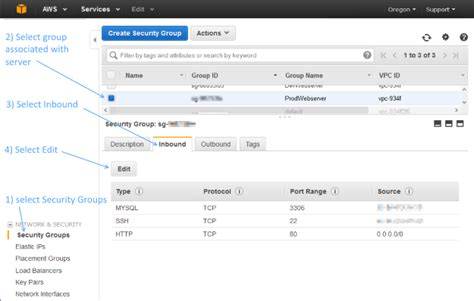
Next, you’ll need to open up the FTP ports on your EC2 server. Log in to the AWS EC2 Management Console and select Security Groups from the navigation tree on the left. Select the security group assigned to your EC2 instance. Then select the Inbound tab, then click Edit:

Add two Custom TCP Rules with port ranges 20-21 and 1024-1048. For Source, you can select ‘Anywhere’. If you decide to set Source to your own IP address, be aware that your IP address might change if it is being assigned via DHCP.

Step #3: Make updates to the vsftpd.conf file
Edit your vsftpd conf file by typing:
> sudo vi /etc/vsftpd/vsftpd.conf
Disable anonymous FTP by changing this line:
anonymous_enable=YES
to
anonymous_enable=NO
Then add the following lines to the bottom of the vsftpd.conf file:
pasv_enable=YES pasv_min_port=1024 pasv_max_port=1048 pasv_address=<Public IP of your instance>
Your vsftpd.conf file should look something like the following - except make sure to replace the pasv_address with your public facing IP address:

To save changes, press escape, then type :wq, then hit enter.
Step #4: Restart vsftpd
Restart vsftpd by typing:
> sudo /etc/init.d/vsftpd restart
You should see a message that looks like:

If this doesn’t work, try:
> sudo /sbin/service vsftpd restart
Step #5: Create an FTP user
If you take a peek at /etc/vsftpd/user_list, you’ll see the following:
# vsftpd userlist # If userlist_deny=NO, only allow users in this file # If userlist_deny=YES (default), never allow users in this file, and # do not even prompt for a password. # Note that the default vsftpd pam config also checks /etc/vsftpd/ftpusers # for users that are denied. root bin daemon adm lp sync shutdown halt mail news uucp operator games nobody
This is basically saying, “Don’t allow these users FTP access.” vsftpd will allow FTP access to any user not on this list.
So, in order to create a new FTP account, you may need to create a new user on your server. (Or, if you already have a user account that’s not listed in /etc/vsftpd/user_list, you can skip to the next step.)
Creating a new user on an EC2 instance is pretty simple. For example, to create the user ‘bret’, type:
> sudo adduser bret > sudo passwd bret
Here’s what it will look like:

Step #6: Restricting users to their home directories
At this point, your FTP users are not restricted to their home directories. That’s not very secure, but we can fix it pretty easily.
Edit your vsftpd conf file again by typing:
> sudo vi /etc/vsftpd/vsftpd.conf
Un-comment out the line:
chroot_local_user=YES
It should look like this once you’re done:

Restart the vsftpd server again like so:
> sudo /etc/init.d/vsftpd restart
All done!
Appendix A: Surviving a reboot
vsftpd doesn’t automatically start when your server boots. If you’re like me, that means that after rebooting your EC2 instance, you’ll feel a moment of terror when FTP seems to be broken - but in reality, it’s just not running!. Here’s a handy way to fix that:
> sudo chkconfig --level 345 vsftpd on
Alternatively, if you are using redhat, another way to manage your services is by using this nifty graphic user interface to control which services should automatically start:
> sudo ntsysv

Now vsftpd will automatically start up when your server boots up.
Appendix B: Changing a user’s FTP home directory
* NOTE: Iman Sedighi has posted a more elegant solution for restricting users access to a specific directory. Please refer to his excellent solution posted as an answer *
You might want to create a user and restrict their FTP access to a specific folder, such as /var/www. In order to do this, you’ll need to change the user’s default home directory:
> sudo usermod -d /var/www/ username
In this specific example, it’s typical to give the user permissions to the ‘www’ group, which is often associated with the /var/www folder:
> sudo usermod -a -G www username
